Pernithia Galnith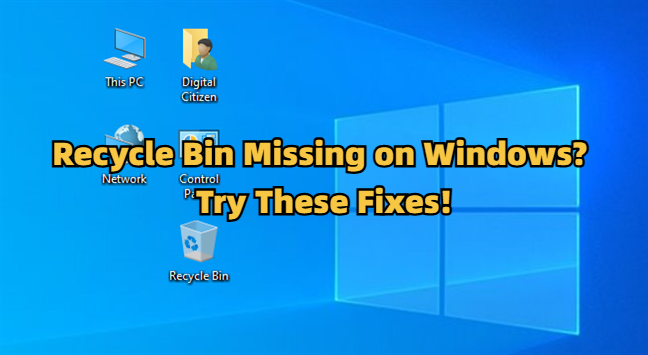
”Hi, my Recycle Bin has disappeared from my Windows Desktop. So, where can I find it? Any help is appreciated.”
___A Question from Reddit
Suddenly can’t find your Recycle Bin on your Windows 11 or 10 Desktop? That’s exasperating, especially if you’re trying to get back a file you just deleted, and the Bin is nowhere in sight.
Don’t worry, though. We’ll share the reasons your Recycle Bin is missing, and show you how to get your deleted files back even when the icon’s gone. Alongside, we’ll tell you exactly how to bring the Recycle Bin back to your Desktop. So, scroll down!
Part 1: What Causes the Recycle Bin Missing Issue on Windows?
If you’re wondering, “Why my recycle bin disappeared,” it could be due to the following reasons:
- The Recycle Bin icon might just be hidden or removed by accident.
- It could be turned off in the desktop icon settings.
- Windows settings or updates may hide it by mistake.
- Damaged system files can make the icon disappear.
- A corrupted user profile can remove system icons.
- Tablet mode on Windows can hide desktop icons.
- Malware or certain apps might hide or remove it.
- Windows bugs or errors can also make it vanish.
Bonus Tip: How to Recover Data from a Missing Recycle Bin?
Before you apply any solution, it’s wise to retrieve your data from the Recycle Bin lest you risk losing it permanently. But as your Recycle Bin is missing from the Desktop, you can’t access your files if you wish to restore them.
However, a specialized Recycle Bin Recovery tool like Tenorshare 4DDiG can retrieve the files with high success to boot. It can also extract data from other internal/external storage media as well besides the Recycle Bin. Here are this tool’s benefits:
- It offers a user-friendly interface that requires no technical skills to use.
- The tool offers up to 2 GB of free recovery for Windows users.
- This software can retrieve audio, images, documents, videos, RAW files, and much more.
- The app can extract files that are deleted, corrupted, formatted, hidden, missing, and much more.
- This software offers a free preview of recovered files.
- This app can repair files as well as recover them.
Here’s how to use this tool to retrieve data from the Recycle Bin:
Step 1: Open the Recycle Bin Recovery tool on your computer. Then, choose “Recycle Bin. Hit “Start.”
Step 2: The tool will look for lost files in the Bin. You can pause or stop anytime and use search or filters to find items fast.
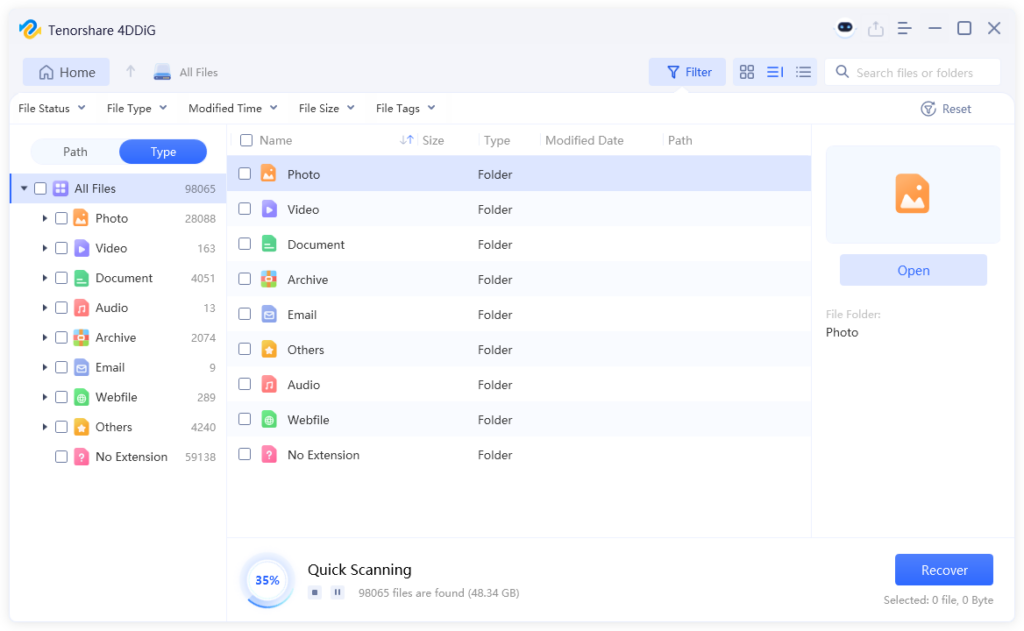
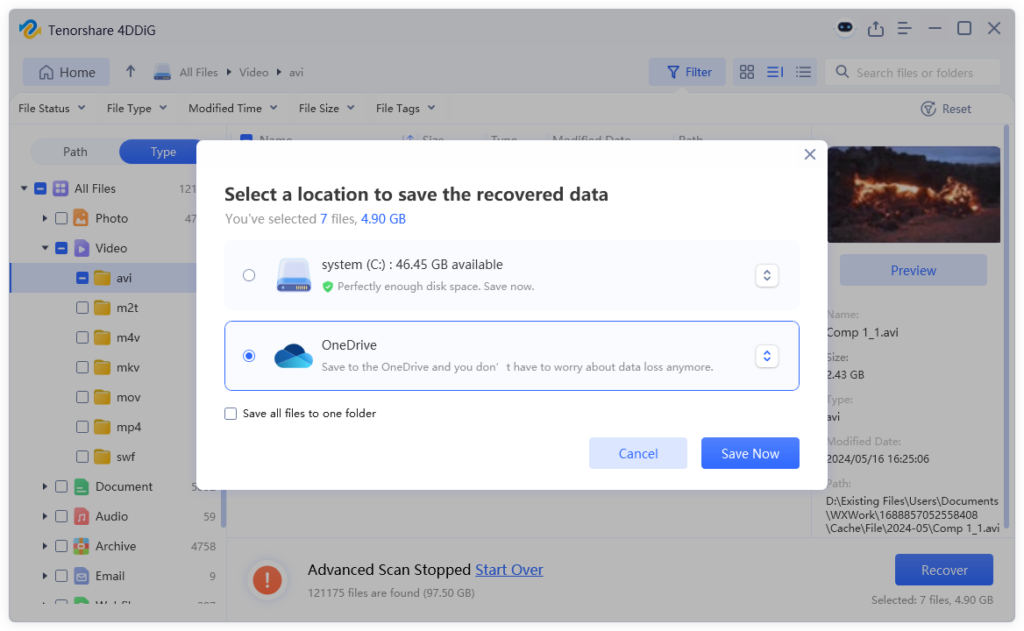
Step 3: When the scan finishes, preview the recovered files from the Bin. Choose what you want. Hit “Recover.” Then save them to a safe location.
Part 2: How Do I Fix the Recycle Bin Missing Issue?
If you can’t find the Recycle Bin on Windows 11/10, here are 6 options to fix this issue. Let’s find out which one does the job:
Option A: Restore Recycle Bin via Desktop Icon Settings
The Recycle Bin icon may have been turned off by accident in the settings, resulting in the Windows 11 ‘Recycle Bin missing’ issue. You can easily turn it back on using the “Desktop Icon Settings” window, where a simple checkbox controls its visibility. Here’s how:
Step 1: Right-click the desktop. Then, choose “Personalize.”
Step 2: Head to “Themes.” Then, scroll to “Related Settings.” Click “Desktop icon settings.”
Step 3: Pick “Recycle Bin (full)” or “Recycle Bin (empty).” Tap “Change Icon.”

Step 4: Choose an icon from the list or browse for one on your PC. Hit “OK” on all windows to save the changes.
Option B: Repair Corrupted System Files
Corrupted system files can make system icons like the Recycle Bin missing. A damaged system image can also do this. However, you can employ the DISM command to repair the Windows system image, which your system depends on.
While another System File Checker (SFC) command can restore the original files by replacing any corrupted ones with clean copies. Here’s how to execute the DISM and SFC commands to resolve the ‘Recycle Bin missing from the Desktop’ issue:
Step 1: Type “cmd” in the Windows search. Then, execute “Command Prompt.”
Step 2: Execute the following command. Hit “Enter” afterward:
- Dism.exe /Online /Cleanup-Image /Restorehealth
Step 3: Once the system image is repaired, execute the next command. Hit “Enter” afterward:
- SFC /SCANNOW
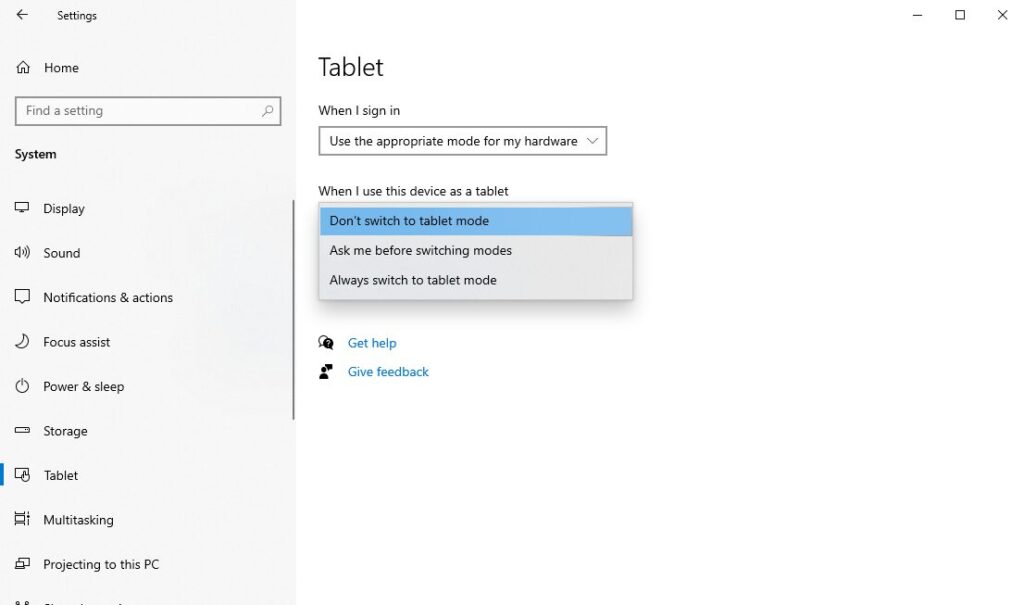
Option C: Turn Off Tablet Mode
When you can’t find the Recycle Bin on Windows 11/10, your computer might have Tablet Mode activated. It’s made for touch devices, so it may hide or shrink desktop icons and make apps open full-screen, which makes accessing icons like the Recycle Bin harder. Follow the instructions beneath for the Windows 11 ‘Recycle Bin missing’ issue:
Step 1: Click Windows Start. Then, select “Settings.” Choose “System.”
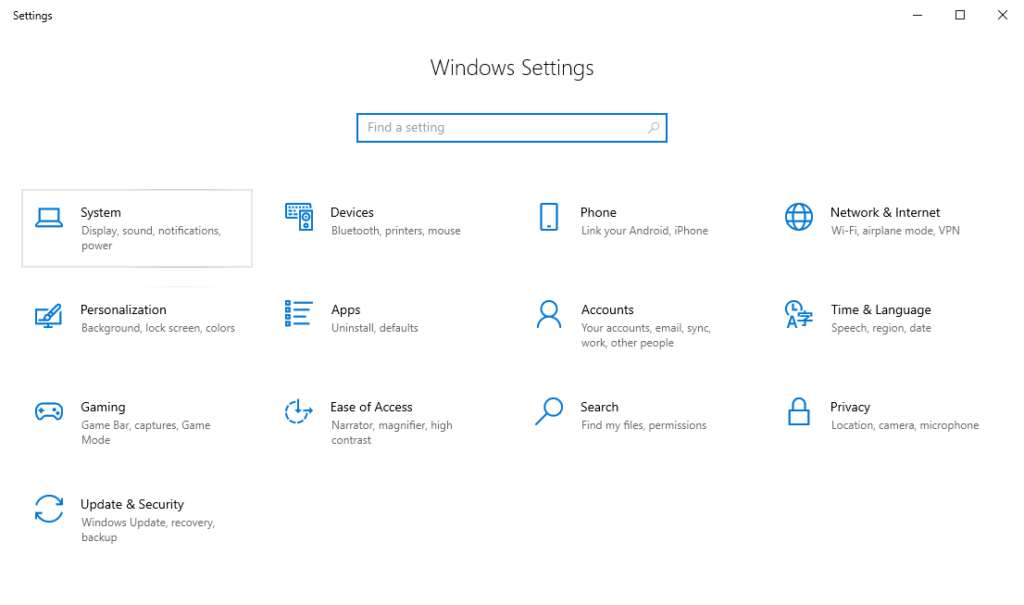
Step 2: Move down. Next, tap the “Tablet’ option.
Step 3: Choose “Never use tablet mode” beneath “When I sign in.” Also, select “Don’t switch to tablet mode” beneath “When I use this device as a tablet.”
Option D: Reset Recycle Bin Using CMD
The Bin can get corrupted because of file system errors or software issues, which might be why you can’t find the Recycle Bin on Windows 11/10. However, you can reset it, which will erase the old Recycle Bin folder and create a fresh one, fixing any corruption as a result. Follow the steps beneath to resolve the Windows 11 ‘Recycle bin missing’ issue:
Step 1: Type “cmd” in the Windows search. Then, execute “Command Prompt.”
Step 2: Execute the following command. Hit “Enter” afterward:
- rd /s /q C:$Recycle.bin
Step 3: Restart your computer. Windows will create a fresh Recycle Bin.
Option E: Reveal Hidden Items
The Recycle Bin icon may be marked as hidden, and since Windows doesn’t show hidden items by default, it can disappear. So, here’s how you can reveal it:
Step 1: Open “File Explorer.” Then, choose “View” from the above menu. Tap “Options.” Then, choose “Change folder and search options.”
Step 2: The “Folder Options” window will pop open. Click the “View” tab.
Step 3: Select “Show hidden files, folders, and drives” beneath the “Advanced settings.” Tap “Apply.” Hit “OK.”
Option F: Perform a System Restore
In case your Recycle Bin is still missing from the Desktop, then perform a System Restore. If the Recycle Bin disappeared after an update or software change, you can bring it back by returning the system to an earlier state. It also helps fix corrupted system files or wrong settings that may have hidden or disabled the Recycle Bin icon. Here’s how to perform a System Restore:
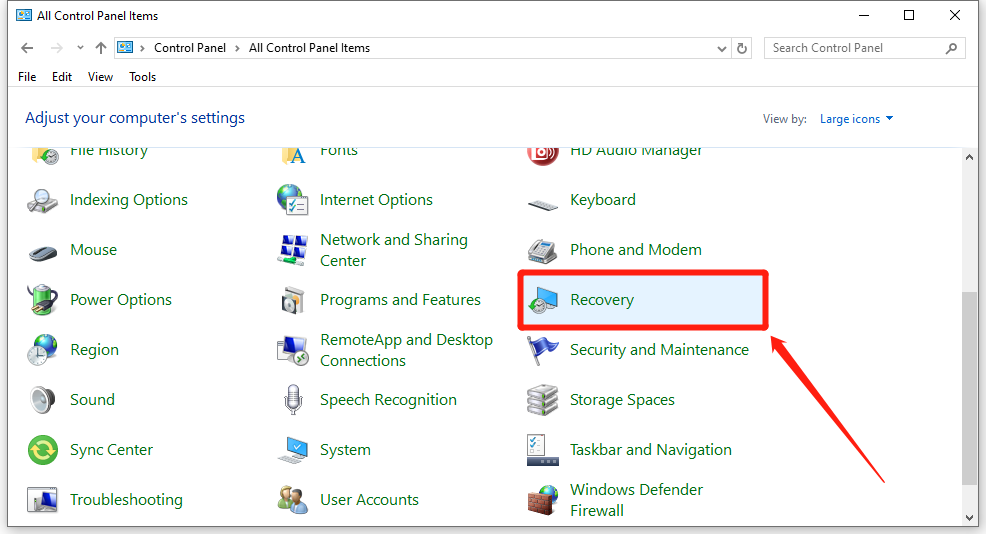
Step 1: Open “Control Panel.” Change the “View” to “Large icons.”
Step 2: Then, tap “Recovery.” Select “Open System Restore.” Hit “Next.”
Step 3: Pick a date before the Recycle Bin disappeared. Hit “Next” again. Tap “Finish.” This will start the restore.
Conclusion
If you were thinking before, “Why my Recycle Bin disappeared,” we’ve suggested proven solutions for it. You can troubleshoot the ‘Recycle Bin missing’ issue by changing icon settings, repairing system files, deactivating Tablet Mode, resetting the Bin, showing hidden items, or performing System Restore. But if you’re worried about losing files while fixing the problem, employ a tool like 4DDiG Data Recovery. It can safely find and restore your deleted files successfully even when the Recycle Bin isn’t showing.