iOS App Icon Sizes: Pixel Dimensions, Scaling, and Essential Guidelines
 Mirathor Quellith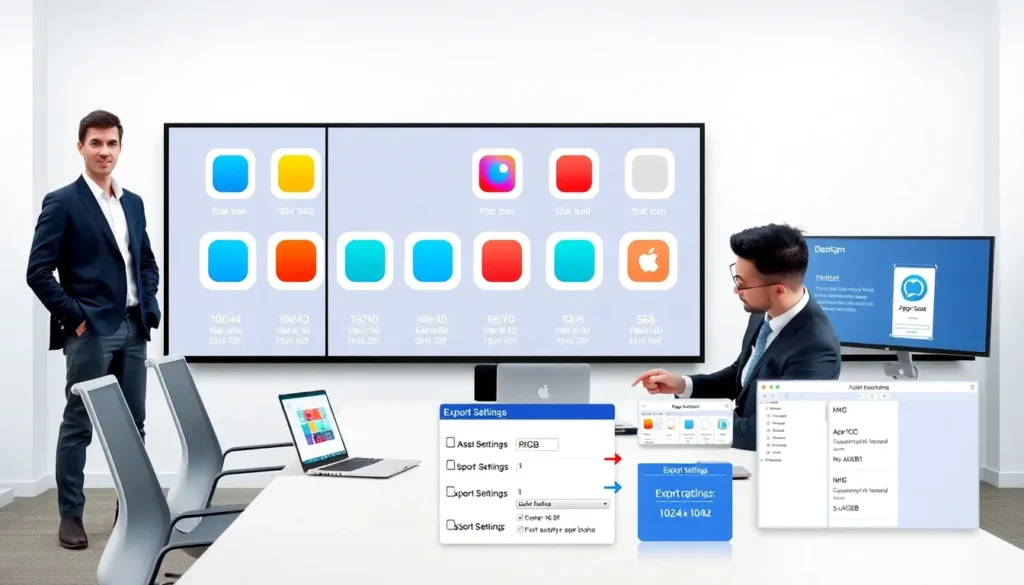
iOS app icon size guides designers and developers to prepare correct artwork. This article lists required pixels, file rules, and design practices. It helps teams export icons that display sharply on devices and the App Store.
Key Takeaways
- Follow Apple’s required iOS app icon size matrix—including a 1024×1024 PNG for App Store Connect—to avoid rejections and blurred listings.
- Export all home screen, Spotlight, and Settings assets at exact pixel dimensions and scales (1x/2x/3x) so the system doesn’t rescale your icons.
- Design icons as vector artwork, keep important elements inside the safe area, and export flattened sRGB PNGs with no alpha or rounded corners.
- Use Xcode’s AppIcon asset slots or an automated export tool to populate every required iOS app icon size and reduce human error.
- Optimize PNGs with lossless compression, strip metadata, and include only required sizes in the bundle to minimize app size without quality loss.
Required Icon Sizes For App Store And Devices
App Store (App Store Connect) Icon Sizes
The iOS app icon size for App Store Connect must be 1024 × 1024 pixels. The asset should use sRGB color and be flattened with no alpha. Apple requires this single large icon for listing and promotional use.
iPhone Icon Sizes (Home Screen, Spotlight, Settings)
iPhone icons follow scale factors 1x, 2x, and 3x. The common iOS app icon size values include 60 × 60 pt at 2x (120 × 120 px) and 60 × 60 pt at 3x (180 × 180 px) for home screen icons. Spotlight icons use 40 × 40 pt at 2x (80 × 80 px) and 3x (120 × 120 px). Settings icons use 29 × 29 pt at scales 1x, 2x, and 3x (29, 58, 87 px).
Designers must provide every required resolution to avoid scaling by the system. Teams that miss sizes risk blurry icons on specific iPhone models.
iPad Icon Sizes (Home Screen, Spotlight, Settings)
iPad icons use different point sizes and mainly 1x and 2x scales. Typical iOS app icon size requirements for iPad include 83.5 × 83.5 pt at 2x (167 × 167 px) for the home screen. Spotlight uses 40 × 40 pt at 1x and 2x (40, 80 px). Settings use 29 × 29 pt at 1x and 2x (29, 58 px).
Teams should check device matrix for older iPad models when they support legacy sizes.
Apple Watch And Mac Icon Sizes (If Applicable)
Apple Watch uses small app icons and notification icons. Typical watch icon sizes include 48 × 48 px and 55 × 55 px depending on model. Mac app icons use large ICNS bundles that include sizes up to 1024 × 1024 px. A well-built icon set supports all target platforms and keeps the app brand consistent.
Legacy And Alternative Sizes To Know
Legacy sizes include 57 × 57 px and 72 × 72 px for older iOS versions. Some ad networks and installers still request those files. Designers who keep a small legacy folder avoid last-minute requests from QA or partners.
This section lists the most requested iOS app icon size values and explains why each matters.
File Naming, Format, And Transparency Rules
Accepted File Formats And Color Profile
Apple accepts PNG for app icons in most cases. The App Store icon must be PNG without alpha. Designers should export files in sRGB to keep color consistent on devices. Using PNG preserves crisp edges and small file sizes.
Alpha Channel, Rounded Corners, And Transparency Guidelines
App icons must not include alpha transparency for home screen and App Store files. Apple applies corner masks and shadows at runtime. Designers should export square artwork without rounded corners. This rule prevents double masking and odd edge artifacts.
Asset Catalog Naming Conventions
Xcode expects the AppIcon asset to follow standard slot names in an asset catalog. Teams should name files by size and scale, or let Xcode display the slot and drop the correct PNG. Using clear, consistent file names helps automation tools map files into the asset catalog.
When managing icons, designers often link to a design resource or tool. For teams that need help with signing or packaging, they can read about an iOS app signer that simplifies builds.
Design And Exporting Best Practices
Design Grid, Safe Area, And Visual Weight Tips
Designers should use a simple grid and keep key visual elements inside a safe area. The safe area sits away from the icon edge by a few pixels depending on scale. Keeping weight centered prevents visual clipping after the system applies rounded corners.
Using Vector Art And Scaling For Multiple Resolutions
Teams should design icons as vector art. Vector files scale without quality loss. Designers export PNGs at required iOS app icon size values from the vector file to ensure pixel-perfect results.
Exporting From Sketch/Figma/Illustrator: Settings Checklist
Designers should export PNGs at exact pixel dimensions and correct scale. They should set color profile to sRGB, disable transparency for store icons, and use integer pixel alignment. Many teams automate export with plugins.
Product teams that work with a design partner often rely on specialists. For those looking for external help, an iOS app design agency can handle icon sets and assets.
Adding And Managing Icons In Xcode
Creating And Populating An AppIcon Asset Catalog
Developers should open Assets.xcassets and create a new AppIcon set. They should drag each PNG into its matching slot. Xcode shows required sizes and scales in the catalog. Filling every slot prevents the system from scaling a missing size.
Verifying Icons During Build And On Device
Teams should build and install the app on device to verify icons. The device shows the actual icon after iOS applies masking. Developers should check the home screen, Spotlight, and settings to confirm appearance.
Automating Exports And Asset Generation Tools
Teams can automate icon generation with scripts or tools that output PNGs for all iOS app icon size slots. Automation reduces errors and keeps assets consistent across releases. For build signing and packaging, teams may use an iOS app signer tool to streamline deployment workflows.
Common Mistakes And Troubleshooting
Blurry Or Pixelated Icons: Causes And Fixes
Blurry icons happen when designers provide the wrong iOS app icon size or miss a scale. Fix this by exporting at exact pixel sizes and correct scales. Another cause is compression during export: export at maximum quality.
App Store Rejections Related To Icons And How To Avoid Them
Apple rejects icons that include alpha, have incorrect sizes, or violate content rules. Avoid rejections by following the App Store Connect pixel requirement of 1024 × 1024 and removing transparency. Review App Store guidelines before upload.
Developers and designers who want a reference guide for app icon implementation can consult a practical article on app icons ios practices. This resource helps teams align on size lists and export steps.
Performance Or Size Issues: Optimization Tips
Large PNG files increase app bundle size. Designers should optimize PNGs with lossless compression and remove unnecessary metadata. Developers should include only required sizes in the final build and use asset catalogs to manage variants.
Teams that follow these steps reduce store rejections, avoid blurry icons, and keep build sizes small. The team provides consistent icons across devices when they export correct iOS app icon size files and verify them on hardware.